Adding Repositories
Repositories are the core resource in Certifai. Each tracked repository is scanned on a schedule, and its results are available across all features -- findings, SBOM, code graph, AI chat, and issue tracking.
Adding a Repository
- Navigate to Repositories in the sidebar
- Click Add Repository
- Fill in the form:
- Name -- a display name for the repository
- Git URL -- the clone URL (HTTPS or SSH), e.g.
https://github.com/org/repo.gitorgit@github.com:org/repo.git - Default Branch -- the branch to scan, e.g.
mainormaster
- Click Add
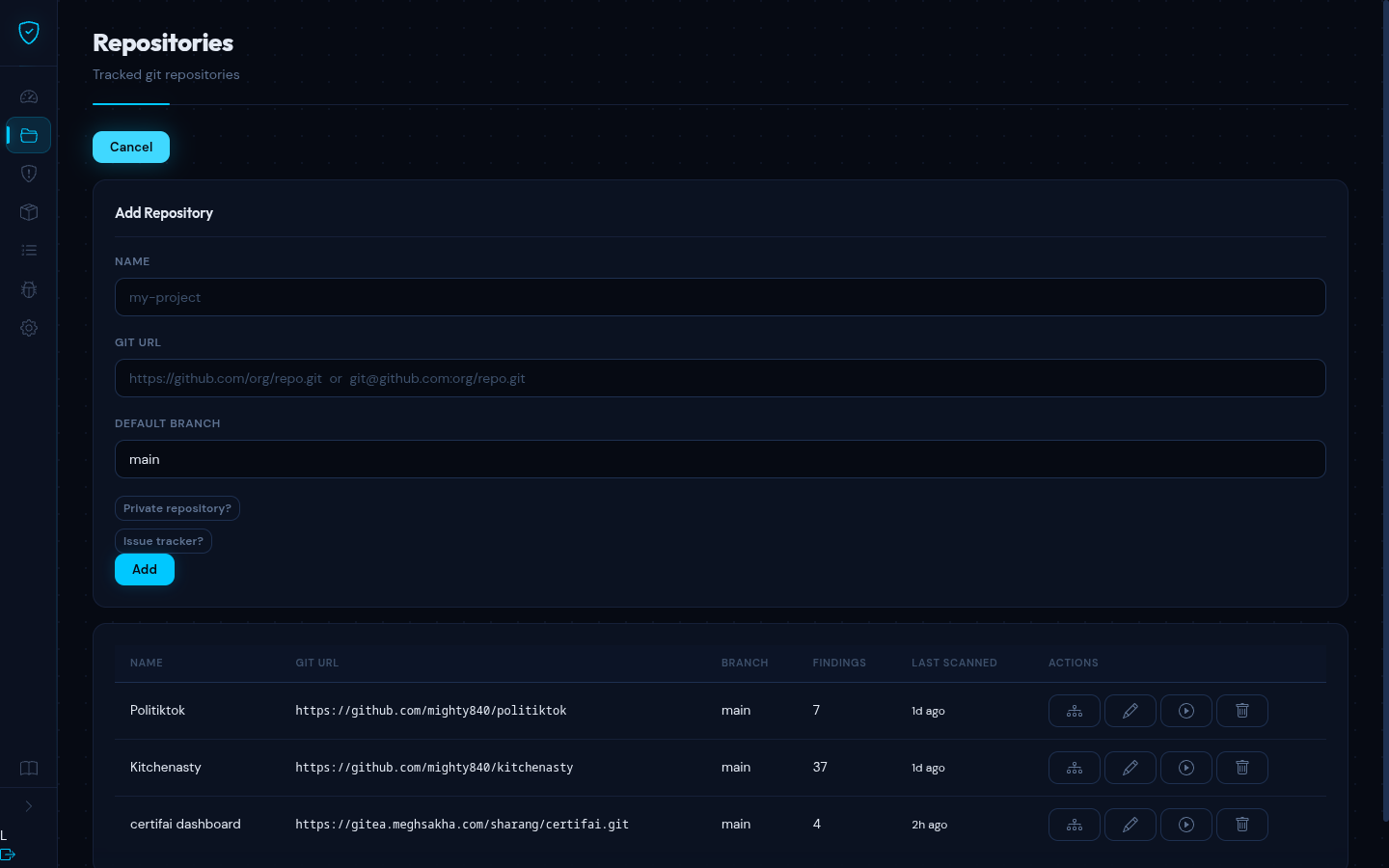
The repository appears in the list immediately. It will not be scanned until you trigger a scan manually or the next scheduled scan runs.
Public vs Private Repositories
Public repositories can be cloned using an HTTPS URL with no additional setup.
Private repositories require SSH access. When you add a repository with an SSH URL (e.g. git@github.com:org/repo.git), Certifai uses an SSH deploy key to authenticate.
Getting the SSH Public Key
To grant Certifai access to a private repository:
- Go to the Repositories page
- The platform's SSH public key is available for copying
- Add this key as a deploy key in your Git hosting provider:
- GitHub: Repository Settings > Deploy keys > Add deploy key
- GitLab: Repository Settings > Repository > Deploy keys
- Gitea: Repository Settings > Deploy Keys > Add Deploy Key
TIP
Deploy keys are scoped to a single repository and are read-only by default. This is the recommended approach for granting Certifai access to private code.
Configuring an Issue Tracker
You can connect an issue tracker so that new findings are automatically created as issues in your existing workflow.
When adding or editing a repository, expand the Issue Tracker section to configure:
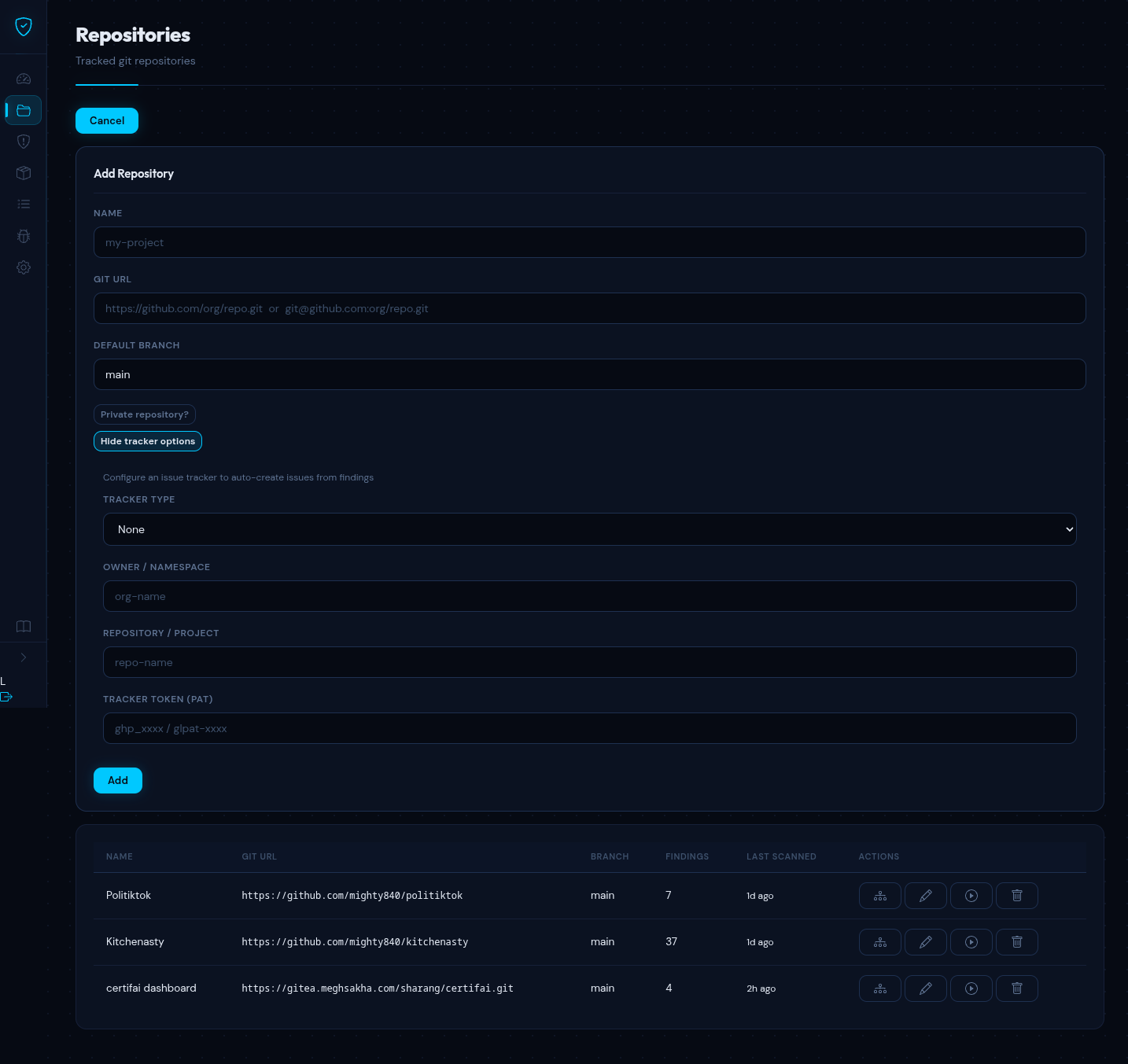
Supported Trackers
| Tracker | Required Fields |
|---|---|
| GitHub Issues | Repository owner, repository name, API token |
| GitLab Issues | Project ID, GitLab URL, API token |
| Gitea Issues | Repository owner, repository name, Gitea URL, API token |
| Jira | Project key, Jira URL, email, API token |
Each tracker is configured per-repository, so different repositories can use different trackers.
Editing Repository Settings
Click the Edit button on any repository row to modify its settings, including the issue tracker configuration.
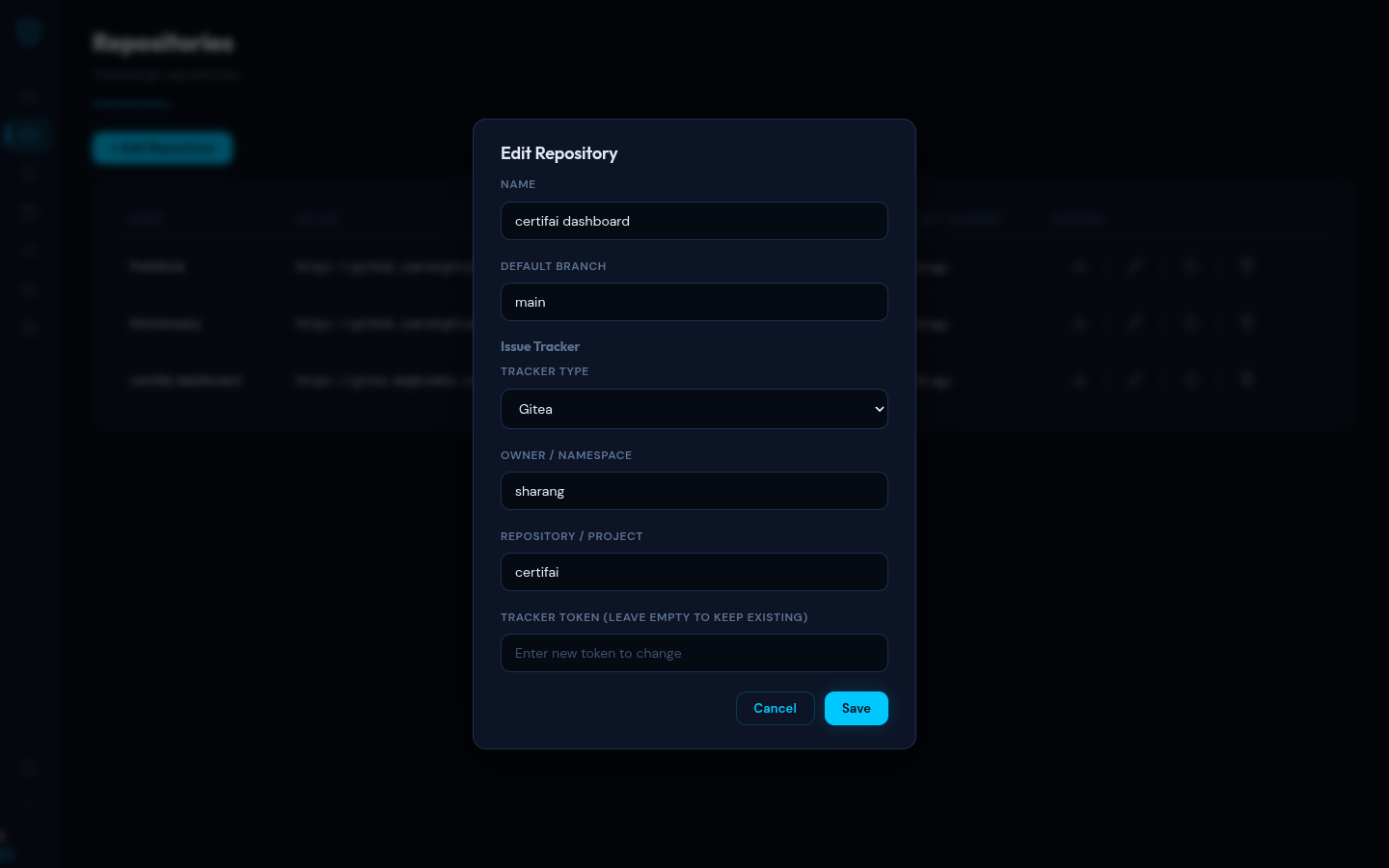
From the edit modal you can:
- Change the repository name, Git URL, or default branch
- Add, modify, or remove issue tracker configuration
- View the webhook URL and secret for this repository (see Webhooks & PR Reviews)
Repository List
The repositories page shows all tracked repositories in a table.
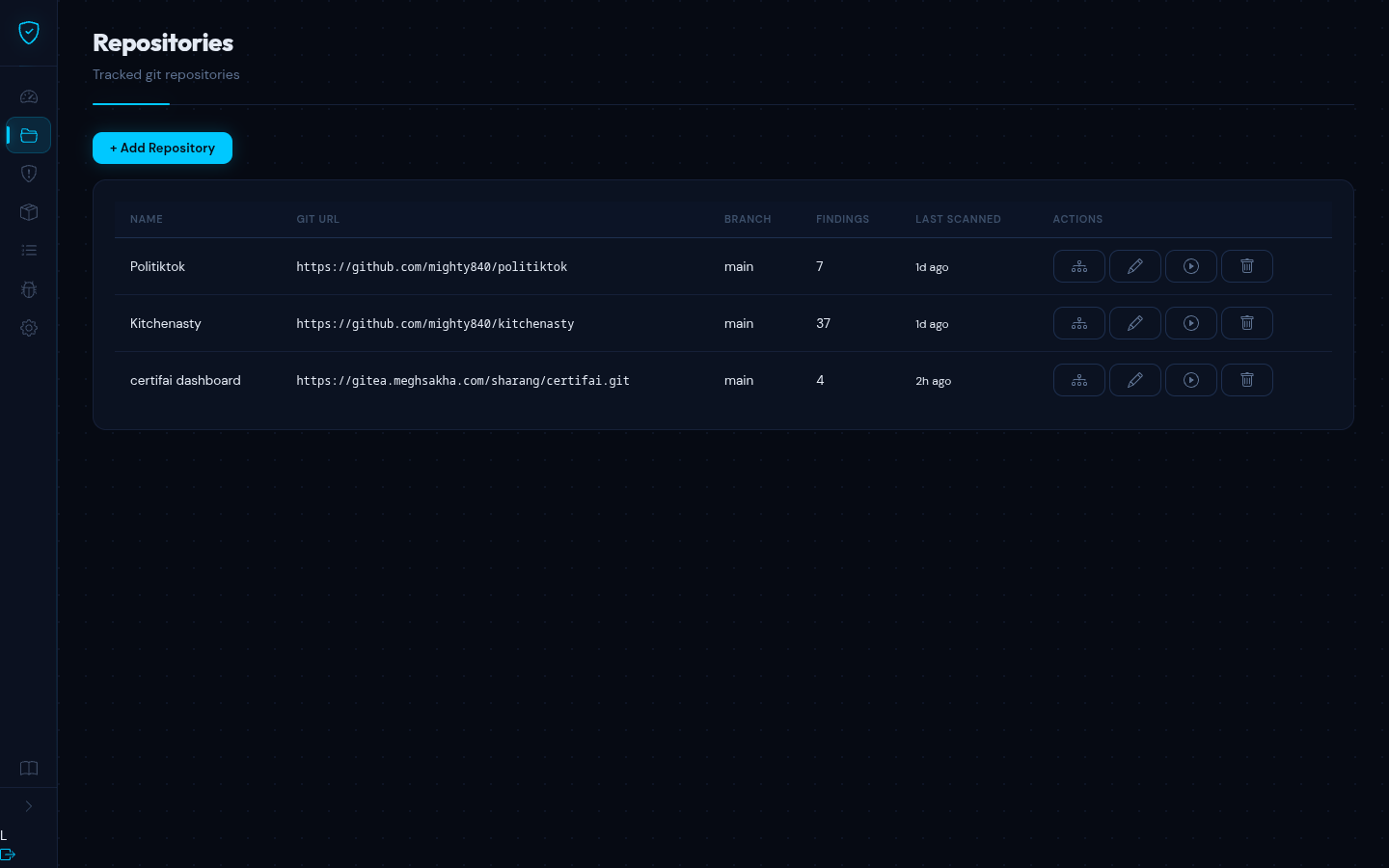
| Column | Description |
|---|---|
| Name | Repository display name |
| Git URL | Clone URL |
| Branch | Default branch being scanned |
| Findings | Total number of security findings |
| Last Scanned | Relative timestamp of the most recent scan |
Triggering a Scan
Click the Scan button on any repository row to trigger an immediate scan. The scan runs in the background through all phases (clone, SAST, SBOM, CVE, graph, issue sync). You can monitor progress on the Overview page under recent scan runs.
Deleting a Repository
Click the Delete button on a repository row. A confirmation dialog appears warning that this action permanently removes:
- All security findings
- SBOM entries and vulnerability data
- Scan run history
- Code graph data
- Embedding vectors (for AI chat)
- CVE alerts
- Tracker issues
This action cannot be undone.